
The SonoTrix Addon Manager is a utility designed to simplify the installation and management of CS-Cart addons developed by SonoTrix. This comprehensive guide will walk you through all the features and operations.
Overview
The SonoTrix Addon Manager provides a centralized interface for managing all your SonoTrix CS-Cart addons. It streamlines the process of installing, activating, and updating addons with minimal configuration required.
Key Features
- Easy Installation: One-click installation of SonoTrix CS-Cart addons directly from the manager interface
- Centralized Management: Manage all your SonoTrix addons from a single, unified interface
- License Management: Activate, view, and manage all your addon licenses in one place
- Automatic Updates: Receive notifications and easily upgrade to the latest versions of your addons
- Compatible Versions: Works with all supported CS-Cart versions
- Minimal Configuration: Quick setup with automatic domain connection to license server
- Addon Discovery: Browse and discover new SonoTrix addons available for your store
System Requirements
Before installing the SonoTrix Addon Manager, ensure your system meets the following requirements:
- CS-Cart: Compatible with supported CS-Cart versions (Multi-Vendor and Ultimate editions)
- Server Access: Ability to upload and extract ZIP files to your CS-Cart installation
- Administrator Access: Full administrator access to the CS-Cart backend
- PHP Requirements: PHP version compatible with your CS-Cart installation
- Internet Connection: Required for license validation and addon downloads
- File Permissions: Write permissions for the addons directory
Table of Contents
- Download the Addon Manager
- Installation
- Accessing the Addon Manager
- Managing Licenses
- Activating a License
- Viewing Other Addons
- Refreshing Licenses and Updates
- Upgrading Addons
- Updating the Addon Manager
- Accessing Addon Settings
1. Download the Addon Manager
To get started, you need to download the SonoTrix Addon Manager package. The Addon Manager is available as a ZIP file that can be uploaded directly to your CS-Cart installation.
Once downloaded, keep the ZIP file ready for the installation process described in the next section.
2. Installation
Follow these step-by-step instructions to install the SonoTrix Addon Manager in your CS-Cart store.
Step 1: Download the Addon Manager Package
Download the SonoTrix Addon Manager ZIP file using the download button above or from your SonoTrix account. Save it to a location on your computer where you can easily access it. No extraction is required - you will upload the ZIP file directly to CS-Cart.
Step 2: Upload the Addon
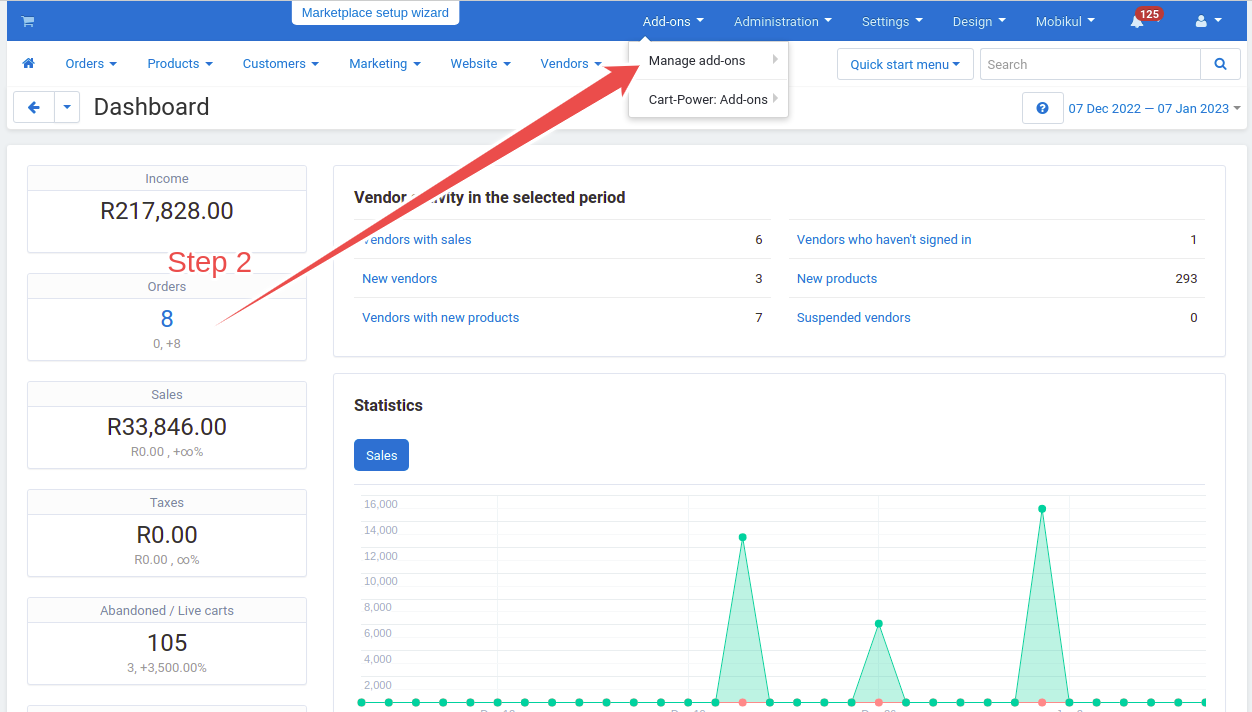
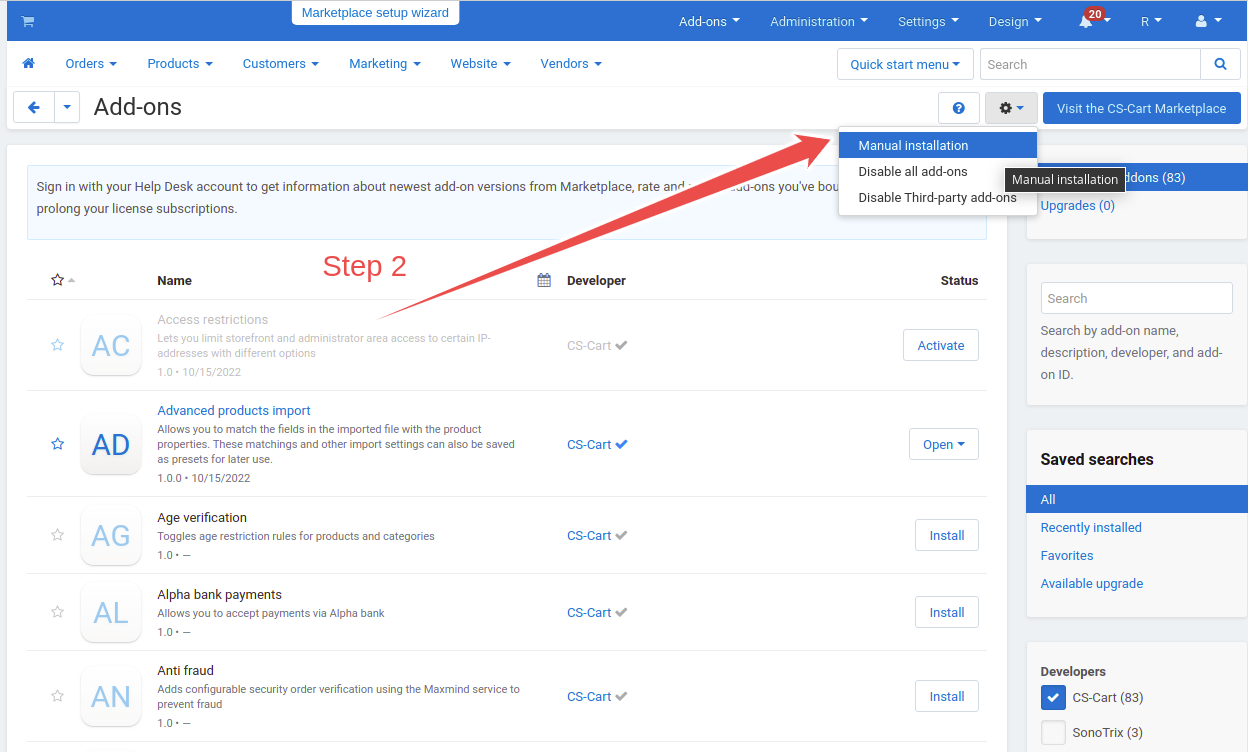
Navigate to your CS-Cart admin panel and go to Add-ons → Manage add-ons. Click on the "Upload add-on" button to upload the SonoTrix Addons Manager ZIP package.
Step 3: Select the Package
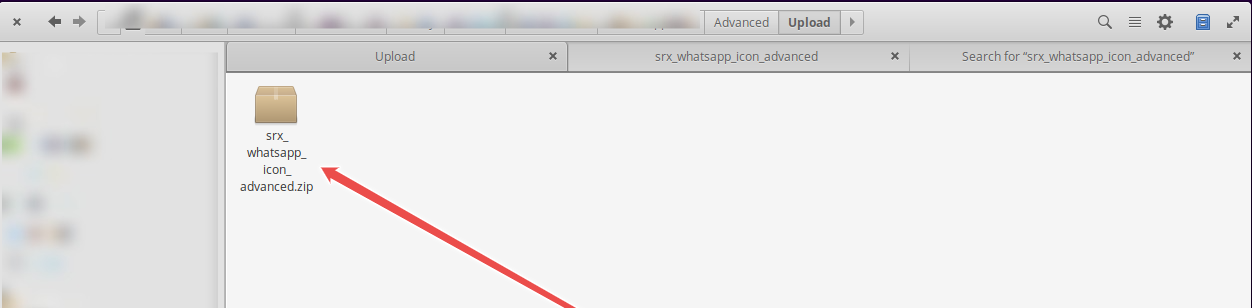
Choose the SonoTrix Addons Manager ZIP file from your computer and click "Upload". The system will validate and process the package automatically.
Step 4: Verify Installation
After the upload is complete, you should see "SonoTrix Addons Manager" appear in your addons list. The addon will be in an inactive state initially.
Step 5: Activate the Addon
Find "SonoTrix Addons Manager" in the addons list and click the "Activate" button to enable it.
- Create necessary database tables for license management
- Connect your domain to the SonoTrix license server
- Generate a unique domain key for license validation
- Set up the initial configuration
3. Accessing the Addon Manager
Once installed and activated, you can access the SonoTrix Addons Manager from your CS-Cart admin panel.
Step 1: Navigate to Addon Manager
In your CS-Cart admin panel, go to Add-ons → SonoTrix Addons or look for the "SonoTrix Addons Manager" menu item in the navigation.
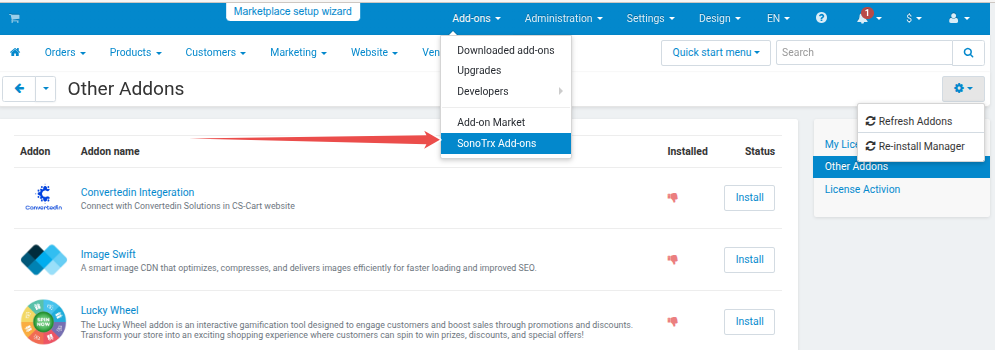
The Addon Manager interface will display two main sections:
- Licenses: Shows all your activated SonoTrix addon licenses
- Other Addons: Displays SonoTrix addons that are available but not yet licensed
4. Managing Licenses
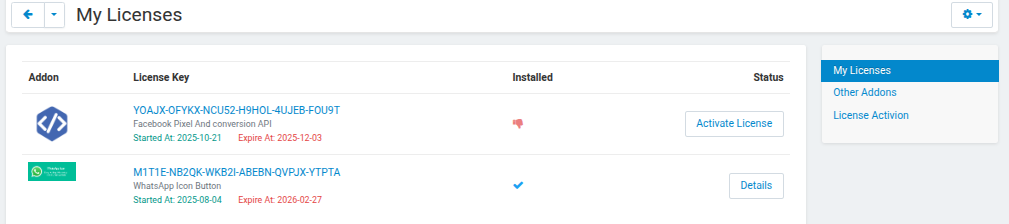
The Licenses section shows all your activated SonoTrix addons with their license information, status, and available actions.
Viewing Your Licenses
When you open the Addon Manager, you'll see the "Licenses" tab by default. This displays:
- Addon name and description
- License status (Active/Inactive)
- License expiration date
- Current version information
- Available actions (Install, Activate, Details, etc.)
5. Activating a License
To use a SonoTrix addon, you need to activate its license. There are two ways to activate a license:
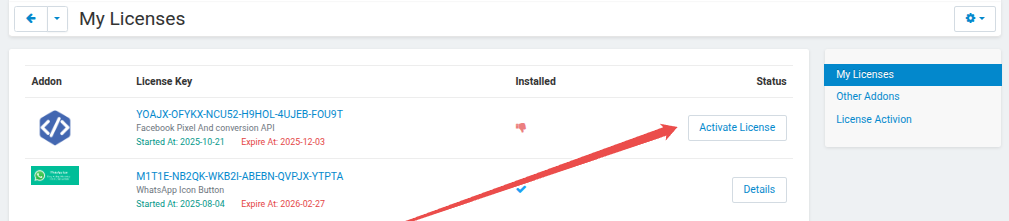
Method 1: Activate from Licenses List
If you have a license for an addon that's not yet activated:
- Go to the "Licenses" tab in the Addon Manager
- Find the addon you want to activate
- Click the "Activate License" button
- Enter your license key when prompted
- Click "Activate" to validate and activate the license
Method 2: Activate by License Code
You can also activate a license directly using the license activation page:
- In the Addon Manager, click on "License Activation" or navigate to the activation page
- Enter your license key in the provided field
- Click "Activate"
- The system will validate your license with the SonoTrix license server
- Upon successful validation, the license will be added to your licenses list
- You'll see a success notification confirming the activation

6. Viewing Other Addons
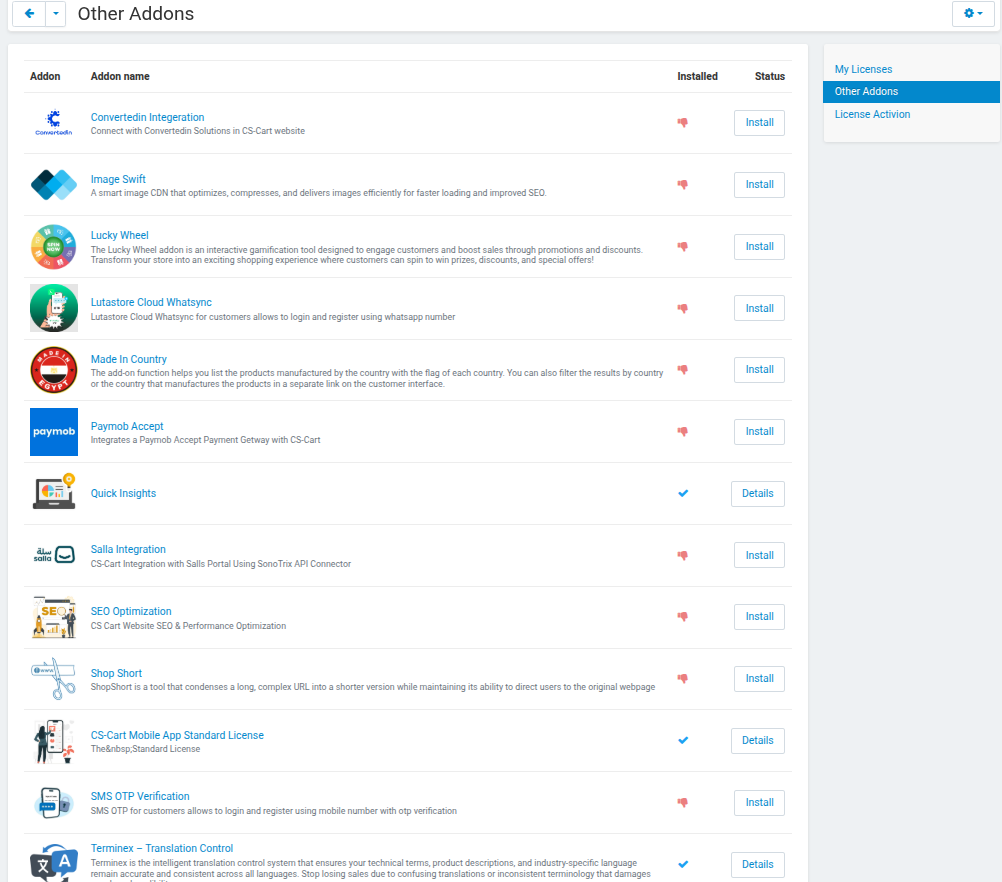
The "Other Addons" section displays SonoTrix addons that are available but not yet licensed on your store.
Browsing Available Addons
To view other available SonoTrix addons:
- Click on the "Other Addons" tab in the Addon Manager
- Browse through the list of available addons
- Each addon shows its description, features, and status
- You can click "Details" to learn more about any addon
If you have a license for any of these addons, you can activate it using the methods described in section 4.
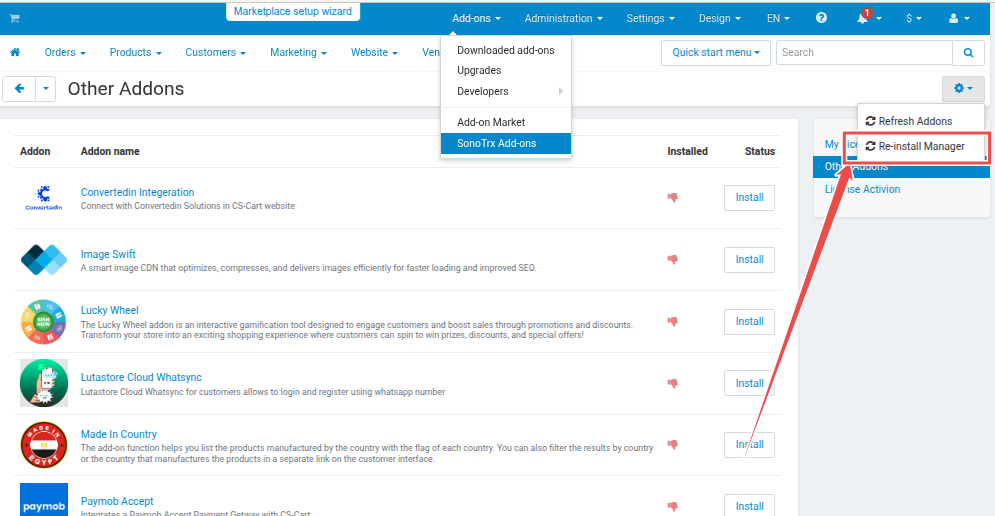
7. Refreshing Licenses and Updates
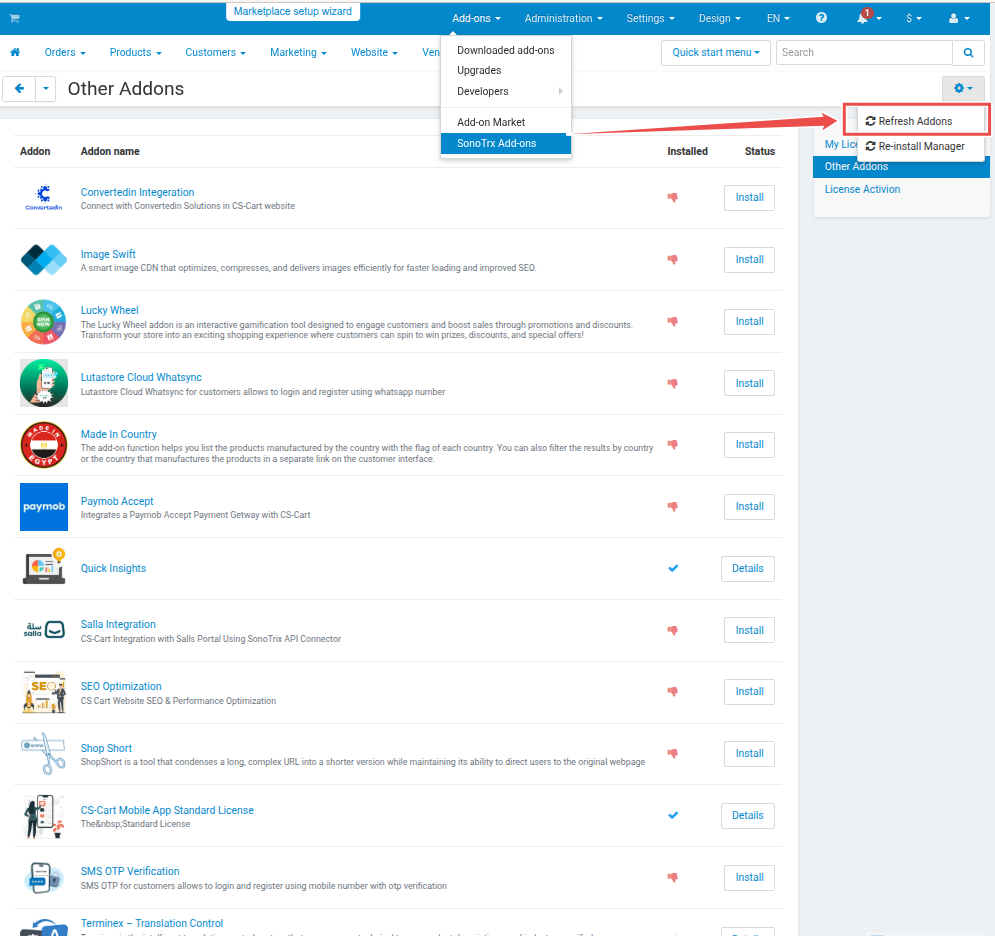
To ensure you have the latest license information and available updates, you should periodically refresh your licenses.
How to Refresh
- In the Addon Manager, click the "Refresh" button (usually located at the top of the Licenses or Other Addons page)
- The system will connect to the SonoTrix license server and update:
- License statuses
- Available addon versions
- New addons in the catalog
- License expiration dates
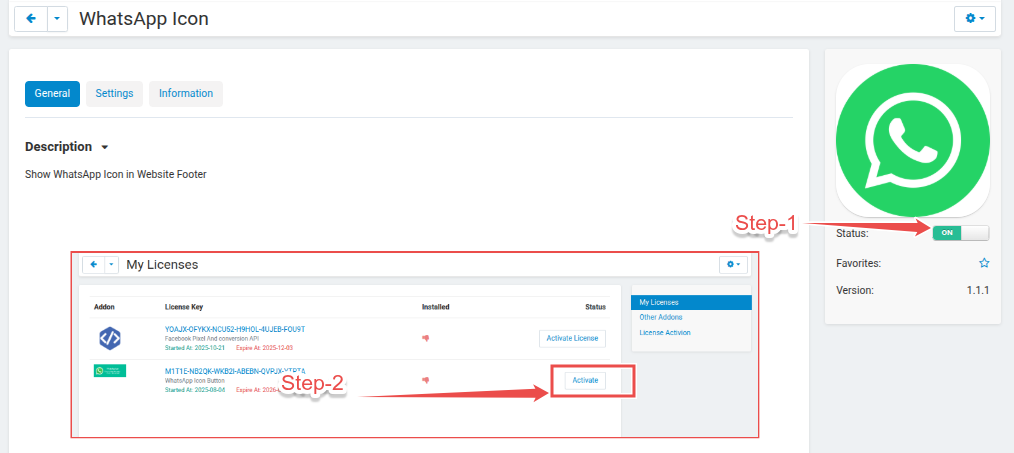
8. Upgrading Addons
When a new version of an addon is available, you can upgrade it directly from the Addon Manager.
Upgrade Process
Important: Before upgrading an addon, you must disable it first to prevent conflicts during the upgrade process.
- Go to Add-ons → Manage add-ons in your CS-Cart admin panel
- Find the addon you want to upgrade
- Click the "Disable" button to deactivate it
- Return to the SonoTrix Addons Manager
- In the Licenses list, find the addon you just disabled
- Click the "Activate" or "Install" button
- The system will download and install the latest version
- After installation, the addon will be automatically activated
9. Updating the Addon Manager
The SonoTrix Addons Manager itself can be updated to the latest version to get new features and improvements.
How to Update
- In the Addon Manager interface, look for the update notification or version information
- If an update is available, you'll see an "Update" button or link
- Click the update button
- The system will automatically download and install the latest version
- You'll be redirected back to the Licenses page after a successful update
10. Accessing Addon Settings
After installing a SonoTrix addon, you can access its settings to configure it according to your needs.
Opening Addon Settings
- Go to Add-ons → Manage add-ons in your CS-Cart admin panel
- Find the installed SonoTrix addon in the list
- Click on the addon name or the "Settings" button
- You'll be taken to the addon's configuration page
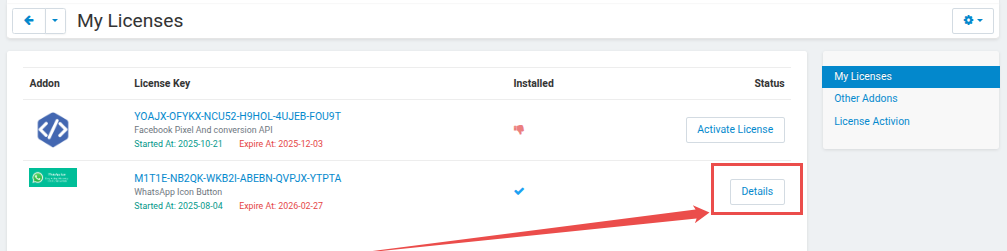
Alternatively, you can access addon settings from the Addon Manager:
- In the Licenses list, find the addon
- Click the "Details" button
- This will take you to the addon's settings page
Frequently Asked Questions
Q: What happens if my license expires?
A: If your license expires, the addon will be automatically disabled. You'll need to renew your license to continue using the addon.
Q: Can I use the same license on multiple domains?
A: License usage depends on your license type. Check your license terms or contact SonoTrix support for information about multi-domain usage.
Q: How do I know if an update is available?
A: The Addon Manager will show update notifications in the Licenses list. You can also manually refresh to check for updates.
Q: What should I do if an addon installation fails?
A: Check that your server has write permissions for the addons directory. Also ensure you have a valid license key. If problems persist, contact SonoTrix support.
Q: Can I uninstall addons through the Addon Manager?
A: To uninstall addons, go to Add-ons → Manage add-ons in your CS-Cart admin panel and use the standard uninstall process. The Addon Manager focuses on installation and license management.
Documentation & Usage
After installation, the Addon Manager provides a comprehensive interface for managing all your SonoTrix CS-Cart addons efficiently from a single place. The manager allows you to:
- View all your activated licenses in one centralized location
- Install and activate addons with a single click
- Monitor license status and expiration dates
- Check for and install addon updates
- Browse available SonoTrix addons
- Access addon documentation and settings
All operations are designed to be intuitive and require minimal configuration, making addon management a straightforward process.
Contact and Technical Support
If you encounter any issues during installation or usage, or need assistance with the SonoTrix Addons Manager or any SonoTrix addon, please contact our support team:
- Website: https://sonotrix.com
- Knowledge Base: https://crm.sonotrix.com/knowledge-base
- Support Ticket: https://crm.sonotrix.com/clients/open_ticket
- Email: [email protected] (please send from your registered account email)
Our support team is ready to help you with any questions or technical issues you may encounter.